
ESHArio on iPhone
ESHArio works in Safari on top of the EA FC Web App. You need an iPhone with iOS 16 or newer and the free Userscripts app.
Tested on iPhone X with iOS 16.7 and Userscripts 1.8.6. On Android? Install on Android
Installation: five steps
- 1
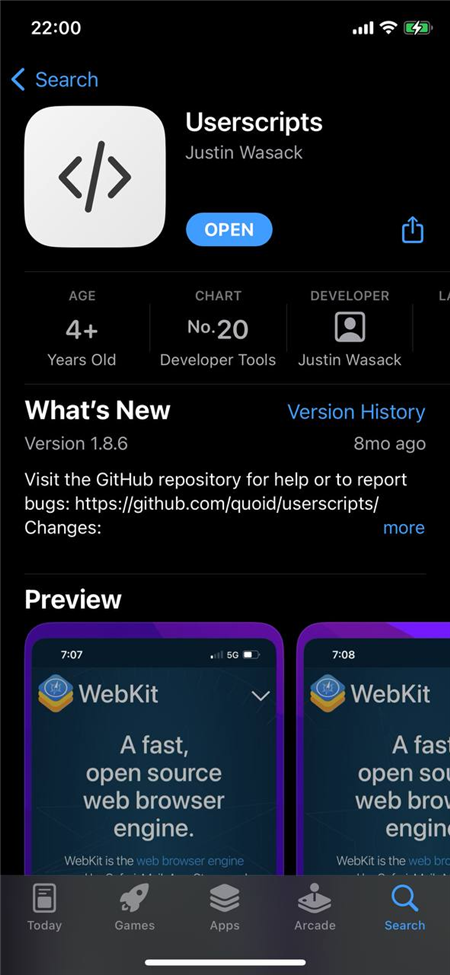
Install Userscripts
Find the “Userscripts” app by Justin Wasack in the App Store and install it. It is free.
After installing, open the Userscripts app once from the Home Screen and close it. Without this first launch Safari will not offer to install the script: the Userscripts window will say “No matched userscripts”.
- 2
Turn it on in Safari
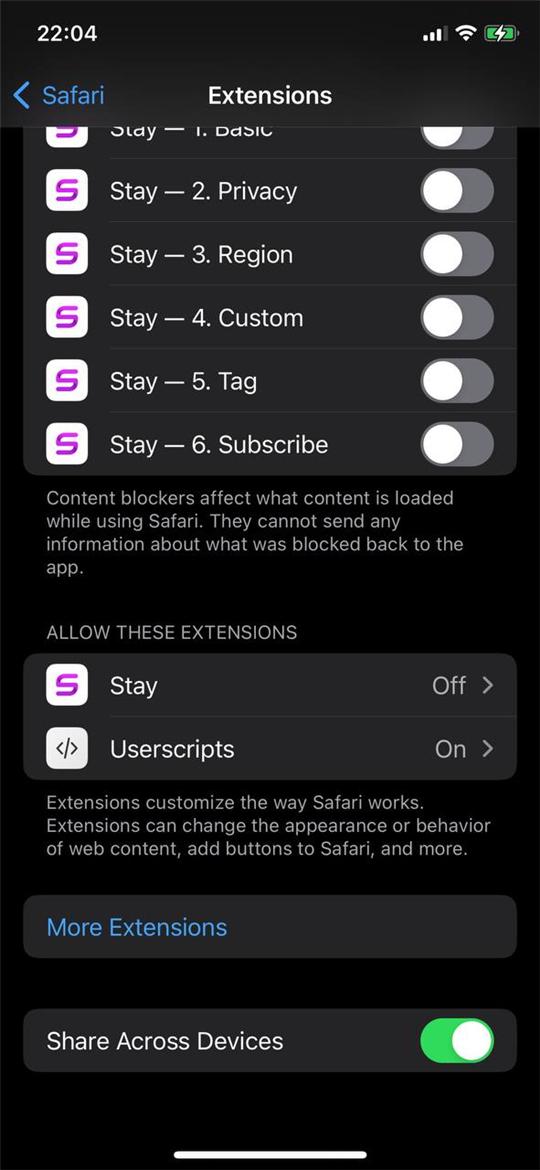
Keep only one script manager. If you have Stay or another manager, turn it off right here: two managers keep two separate counts of requests to EA.
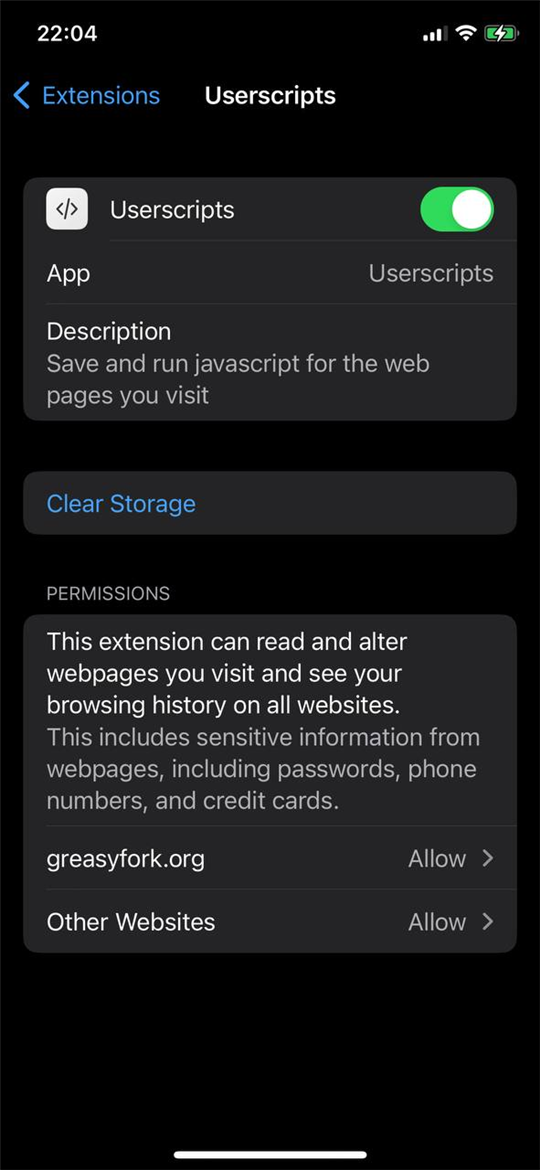
Open “Settings → Safari → Extensions”. Turn on “Userscripts”.
Tap “Userscripts” and set “Other Websites” to “Allow”.
- 3
Install ESHArio
Open this page, eshario.com/ios, in Safari on your iPhone and tap the button below. A page with long text opens: that is the script itself, this is expected.
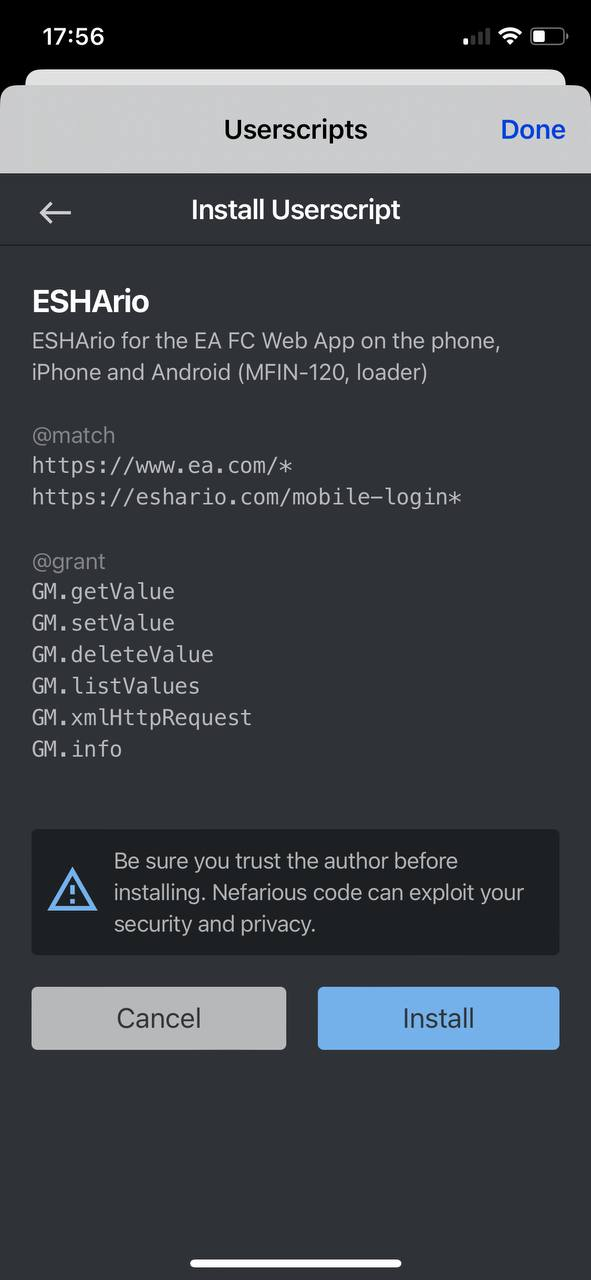
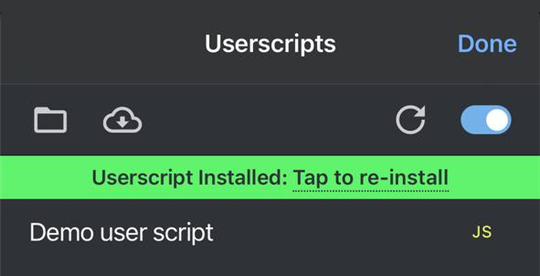
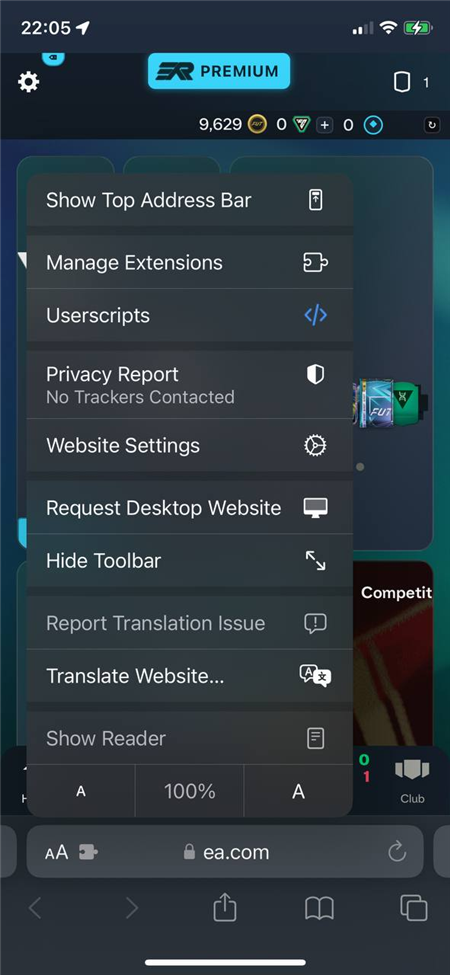
Tap “aA” on the left of the address bar and choose “Userscripts” in the menu. In the Userscripts window tap “Install”.
The green “Userscript Installed” line means you are done.
- 4
Open the web app
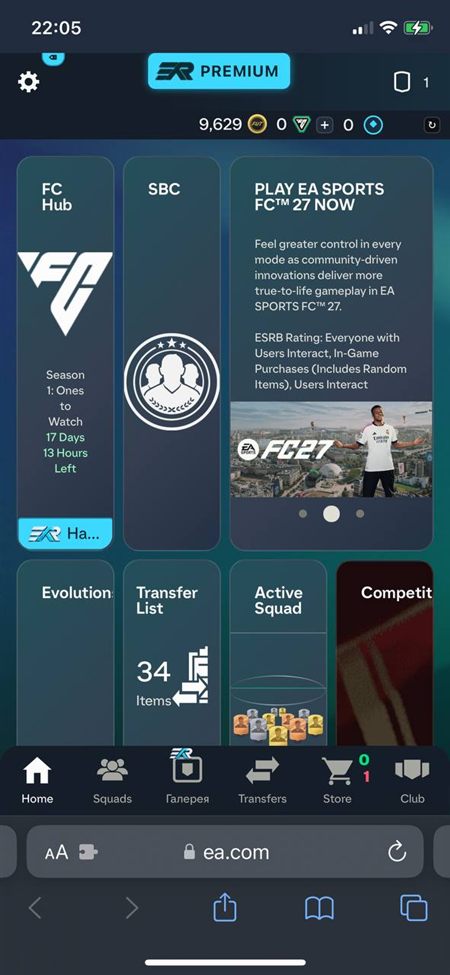
Open ea.com/ea-sports-fc/ultimate-team/web-app. The first time, ESHArio downloads its code from our server and checks the signature: a loading line appears at the top. Wait a minute and reload the page. After that ESHArio appears in the web app header.
If you do not see ESHArio, tap “aA” in the address bar and check that “Userscripts” is in the menu.
- 5
Sign in to your ESHArio account
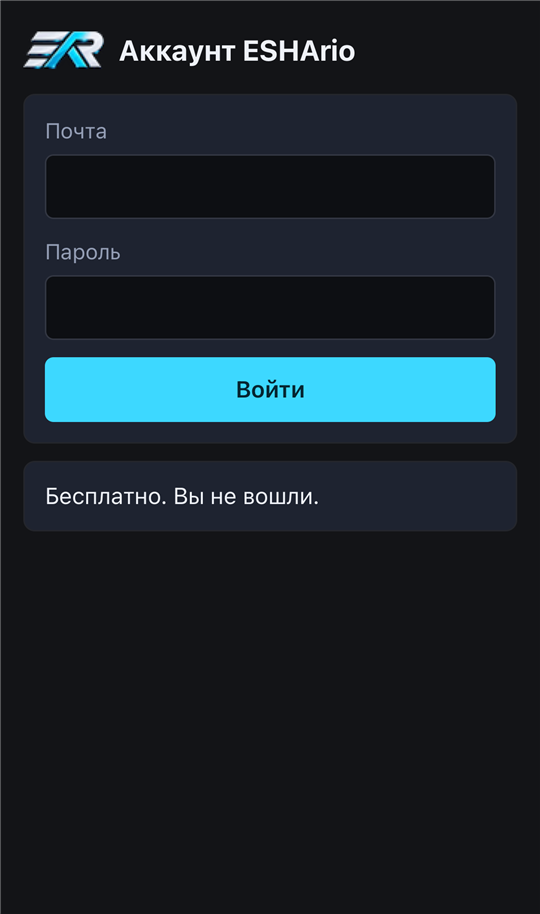
Tap “sign in” on the ESHArio badge in the header. The sign-in page eshario.com/mobile-login opens. Enter the email and password of your ESHArio account and go back to the web app. Your purchased access turns on by itself.
Good to know
- ESHArio starts one or two seconds after the web app, rarely ten. If fifteen seconds have passed and there is no ESHArio badge in the header, reload the page.
- If ESHArio is gone completely and reloading does not help, open “Settings → Safari → Extensions → Userscripts” and check that “ea.com” and “Other Websites” are set to “Allow”. Safari takes back access granted “for one day” by itself.
- If access is set and ESHArio is still missing, close Safari completely: swipe up from the bottom edge of the screen, find Safari among the open apps and swipe it up. Open Safari again and the web app in it. Sometimes the Safari extension falls asleep and does not wake the script until Safari starts again. Reloading the page does not fix this.
- Keep the web app in one tab. In a second tab ESHArio says it is busy in another tab and offers a reload button. Close the first tab, and the second one starts working by itself within half a minute.
- Do not keep many tabs open in Safari. Safari unloads a hidden tab from memory, and the web app loads again when you come back.
- While ESHArio searches the market, the screen does not turn off by itself. The first start of a search may ask you to tap again: tap once more, this is how Safari allows keeping the screen on.
- If you lock the phone or switch to another app, the search pauses. Come back and tap to continue. Calls work the same way: answer a call and the search pauses until you continue. Decline it and the search keeps going.
- Card locks are per device for now: a card locked on the computer is not locked on the phone. Lock it here too.
- ESHArio works on one computer and one phone at a time. On a second phone the price tags disappear and the badge in the header shows a pause. And EA itself keeps the web app open on only one device: signing in to the web app on the computer logs the phone out.
- ESHArio updates by itself: when you open the web app, ESHArio checks our server and installs the new version from the next page load.
Stuck? Message us on Telegram or email support@eshario.com, we will help.