
Install ESHArio
ESHArio is installed from our site once. After that the code arrives from our server in seconds, every time you open the web app.
Latest version from our site
You need the archive once: after that the code arrives from our server in seconds.
You need an up-to-date Google Chrome on a computer (Windows, Mac or Linux). Chrome updates itself; to check the version, open chrome://version. Old and portable Chrome builds are not supported.
Video coming soon: a one-minute walk through the steps.
Installing: eight steps
- 1
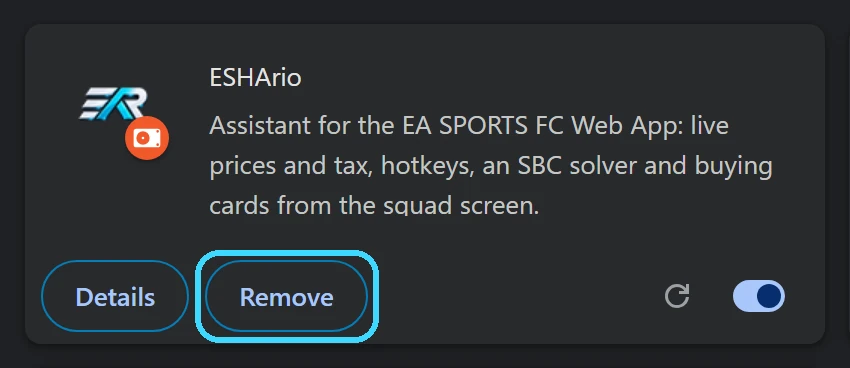
Remove the old ESHArio and turn off other FUT helpers
On chrome://extensions press “Remove” on ESHArio: both on the copy from the store and on an older copy from our site. The new archive has its own id in Chrome, and two copies side by side would get in each other’s way. The settings and the solver’s card locks in this Chrome will be erased. Your purchase stays: sign in again after installing. Turn off other extensions for the FUT Web App with the switch on the same page. Two helpers on one screen get in each other’s way: buttons and prices go missing.
- 2
Download the archive
Press the button below. The archive lands in your Downloads folder. Chrome may mark a fresh archive as a file that is rarely downloaded: press “Keep”.
- 3
Unpack the archive
Chrome does not open zip files. The folder picker will not show the archive at all, and that is not a bug: Chrome wants the unpacked folder.
Right-click the archive, “Extract All”, “Extract”. On a Mac, double-click it. Keep the folder where it will stay, for example “Documents/ESHArio”: Chrome runs the extension straight from it.
- 4
Open the extensions page
Press “Copy” below, paste the address into the Chrome address bar and press Enter. The Extensions page opens.
chrome://extensions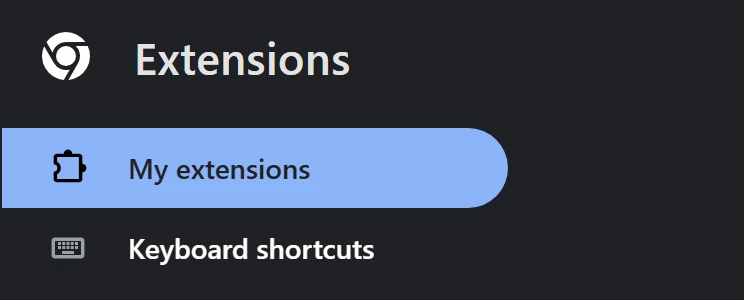
- 5
Turn on “Developer mode”
The switch is in the top right corner. It only allows extensions from a folder and changes nothing else.

- 6
Press “Load unpacked”
Pick the unpacked folder from step three, the one that holds the manifest.json file. ESHArio appears in the list of extensions.

- 7
Pin the ESHArio icon
To the right of the address bar press the puzzle icon, then the pin next to ESHArio. The icon stays on the Chrome toolbar, always at hand.
- 8
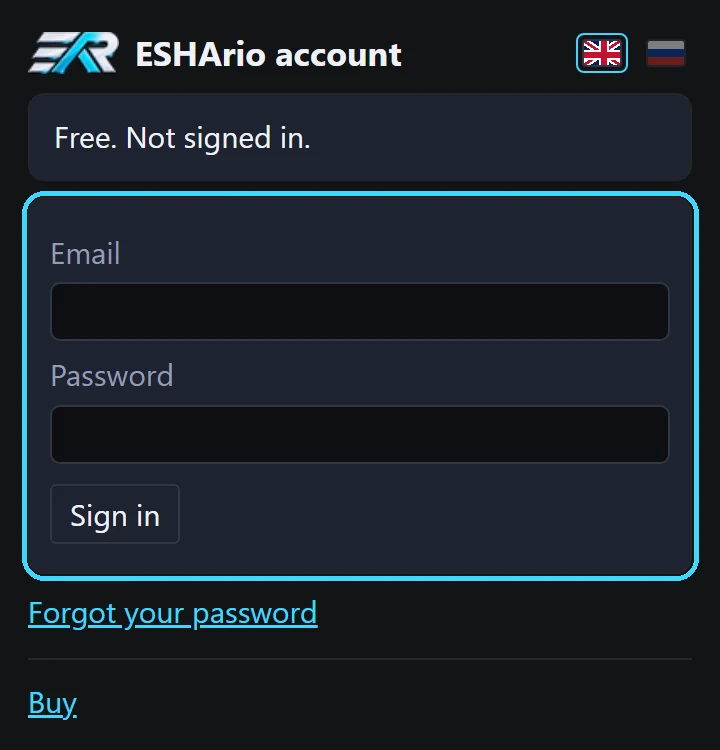
Sign in
Press the ESHArio icon on the Chrome toolbar or “sign in” next to the ESHArio mark at the top of the web app. The sign-in window opens: use the email and password from your purchase email. Free features work without signing in.
If Chrome asks “Disable developer mode extensions?” when it starts, press “Cancel”. Usually this window does not appear.
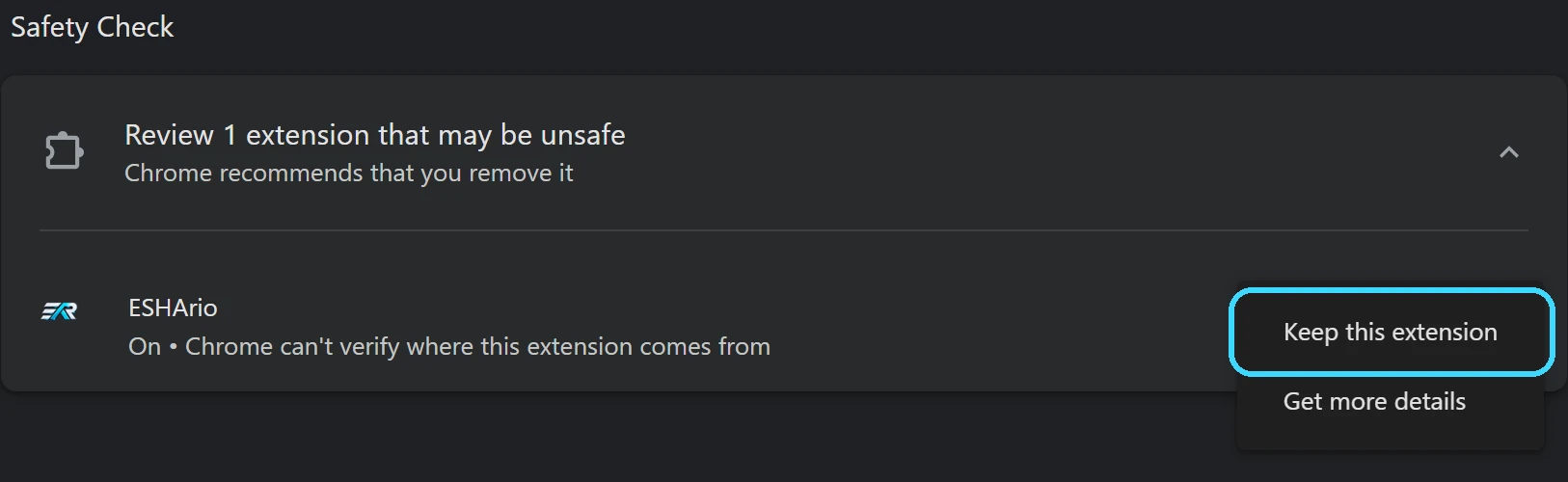
Chrome suggests removing ESHArio?
Chrome marks every extension that is not from the store this way: “Chrome can’t verify where this extension comes from”. Press the three dots on the right and “Keep this extension”. While Developer mode is on, this question does not come up.
How to update
ESHArio updates itself: a new version comes from our server the next time you open the web app, nothing to download. A new archive is needed rarely, and the line “A new ESHArio archive is needed” in the web app top bar will say so. Then:
- Download the new archive from this page.
- Unpack it into the same folder and agree to replace the files.
- On chrome://extensions press “Update”.
- Reload the web app tab with F5.
Removing the extension erases the solver’s card locks, so update on top without removing it.
Your settings and sign-in survive the update.
Stuck? Message us on Telegram or email support@eshario.com, we will help.
